![OXFORD_GLOBAL-LOGO_SYMBOL_WHITE.png]](https://partners.oxfordglobal.co.uk/hs-fs/hubfs/OXFORD_GLOBAL-LOGO_SYMBOL_WHITE.png?height=40&name=OXFORD_GLOBAL-LOGO_SYMBOL_WHITE.png)
How to find my QR Code -
Follow these steps to locate your personal QR code in the mobile app:
- Log in and go to the "More" section int he mobile app's main menu.
- Tap on your profile image at the top left - hand corner. Here you will find your QR code, which others can scan to connect with you.
How to Scan a Badge in the Mobile App -
- Log in and access the "More" section.
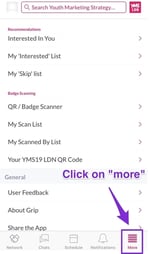
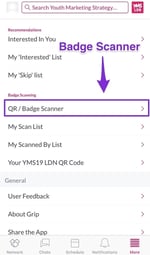
2. Select "QR/Badge Scanner"
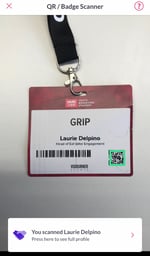
3. Start Scanning
- When you tap "Badge Scanner", the app will activate your device's camera. Ensure the app has permission to use the camera.
- Hold the badge in front of the camera. The scan will begin automatically.
- A green box will appear around the QR code to indicate a successful scan, along with a confirmation message.
- You can tap on the participant's name to view their profile, but a connection will be automatically created regardless.
Additional Notes :
-
The mobile app is optimized for rapid badge scanning, allowing multiple scans with minimal delay.
-
If an error message appears (e.g. no scanning permission), this may be due to restrictions set by the event organizer based on event participant type. Contact the organizer for clarification.
-
Badge scans are stored locally when offline. Once reconnected to the internet, offline scans will automatically sync with the platform and appear in the My Scans list.